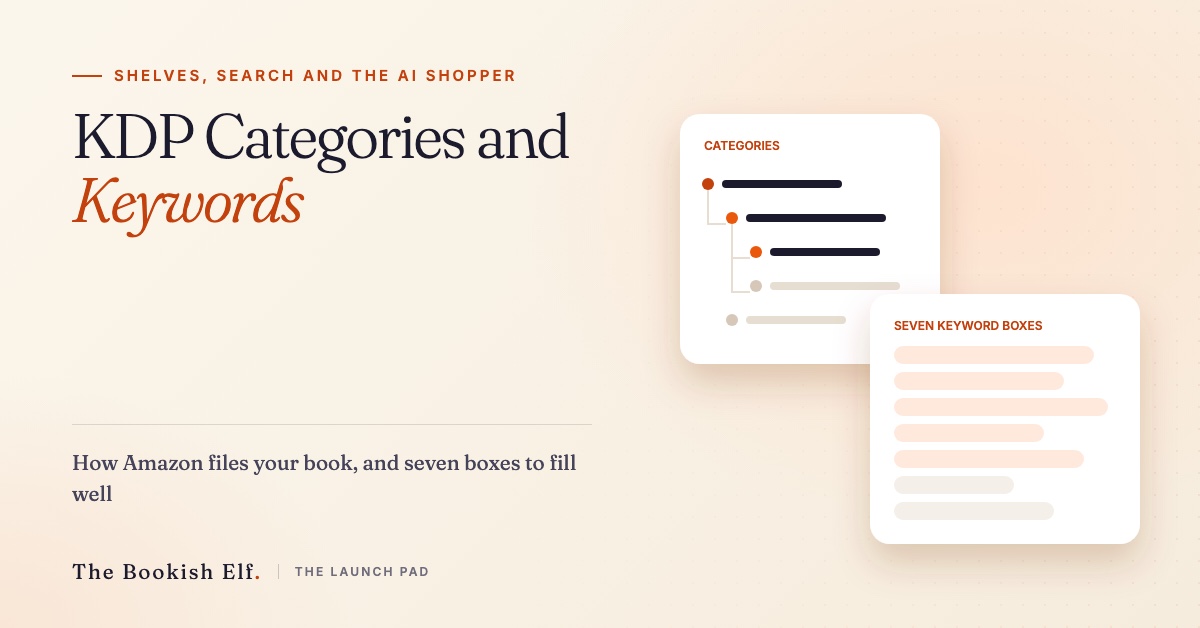
KDP categories and keywords are the two settings that tell Amazon where your book belongs. You pick three categories, which are the shelves your book sits on, and up to seven keywords or short phrases, which are the words readers type. Get both right and the book turns up for the readers who want it. Get them wrong and Amazon may move it, or no one finds it at all.
This guide is for self-published authors setting up a new book on Kindle Direct Publishing, or fixing an old listing. Every rule here comes from KDP’s own help pages, which we read on 3 November 2026: KDP Categories, Make Your Book More Discoverable with Keywords and the Metadata Guidelines for Books. Where those pages are silent or disagree, we say so. Where we are guessing about Amazon’s AI search, we label it as a guess.
How KDP categories and keywords work together
Categories and keywords do different jobs. Categories put your book on browse shelves and bestseller lists, such as a psychological thriller list. Keywords help Amazon match your book to what people type into the search bar. They also interact: KDP tells you not to repeat words from your categories in your keywords, and to use keywords to help Amazon shelve your book when no category fits.
- 1You set metadata
Title, subtitle, 3 categories, up to 7 keywords or short phrases, description, reading age.
- 2KDP checks it
Machine learning, automation and human reviewers; misleading or unrelated entries are removed or changed.
- 3Amazon shelves it
Your 3 categories in your main store; categories differ by store, and KDP may remove or change one that doesn't fit.
- 4Readers search or browse
Typed searches match the words in your metadata; browsing uses category shelves.
- 5The AI assistant answers
Alexa for Shopping (formerly Rufus) recommends products; Amazon hasn't published how it picks books.
The setup changed in 2023. KDP moved to a picker where you choose three categories in your primary marketplace, and the old habit of emailing KDP Support to be added to extra categories no longer appears in its help pages. KDP now says plainly that Support can’t recommend categories or strategies for you. Categories also differ between Amazon’s stores, so KDP tells you to focus on your main one, and KDP may remove or change a category that doesn’t fit the book.
Since 2026 there is a third reader to write for: Amazon’s AI shopping assistant. Rufus was renamed Alexa for Shopping on 13 May 2026, according to About Amazon, and Amazon reported that more than 300 million customers used it in 2025 (Q4 2025 results). Amazon hasn’t published how it chooses books, so treat any tool that promises to “optimise for Rufus” with care.
Learn the rules before you type anything
KDP’s rules are short, and breaking them can get metadata removed. KDP enforces its metadata guidelines with machine learning, automation and human reviewers, and you can appeal a removal.
Other authors' names, brands you don't own, quality claims like 'bestselling', time-sensitive words like 'new' or 'on sale', Amazon programme names such as Kindle+ or KDP Select, quotation marks, HTML, and words already in your title or categories. (KDP Help: Keywords; Metadata Guidelines for Books. Read 3 Nov 2026.)
Keyword rules. KDP’s keywords page says: “Use up to seven keywords or short phrases.” It tells you to keep an eye on the field’s character limit, to put words in the order readers would type them, and to think about setting, character types and roles, plot themes and tone. It tells you not to use:
- words already in your title, contributor names or categories;
- claims about quality, such as “bestselling”;
- time-sensitive words, such as “new” or “on sale”;
- generic words most books in the category share, such as “book”;
- spelling errors, or variants that differ only in spacing, punctuation, capitals or plurals;
- the name of an author who isn’t connected to your book;
- brands you don’t own, quotation marks, HTML, or Amazon programme names such as Kindle+ (Kindle Unlimited’s new name since October 2026) or KDP Select.
Title and description rules. The metadata guidelines say your title and subtitle together must be fewer than 200 characters. Book descriptions can’t contain reviews, quotes, testimonials, review requests, web addresses, prices, time-sensitive offers or spoilers. If you answer “yes” to the sexually explicit content question, your book can’t go in Children’s categories and won’t surface in general product searches.
Where KDP disagrees with itself. The keywords page says single words work better than phrases. The metadata guidelines recommend phrases of two to three words. Both pages agree on the bigger point: be specific, and match how readers search. Our suggestion is short, specific phrases in reader word order, which satisfies both.
The character limit. KDP’s pages give no number. Practitioner guides such as Kindlepreneur’s report about 50 characters per box. Check the field in your own dashboard before you plan around it.
Find where your book really sits
Before choosing anything, find five to ten books that a reader of yours would also buy. These are your comparison titles, or “comps”. Pick books published in the last two or three years, in your subgenre and at a similar length.
- Open each comp’s Amazon page and scroll to the product details. Note the bestseller ranks and the category names listed there.
- Click into those categories. Check that the top 20 books look like yours in cover style, tone and price.
- Note which categories come up again and again across your comps. Those are your shortlist.
- Check your primary marketplace. Categories differ by store, and KDP tells you to focus on your main one. Our guide to why a book ranks differently in each Amazon store explains why this matters.
- For children’s and teen books, set the reading age first. KDP says Teen and Young Adult placement needs a reading age of 13 to 17 (12 to 15 on Amazon.de).
If you’re new to KDP itself, start with our guide to Amazon self-publishing.
Choose your three KDP categories
KDP says you can select three categories when you create a book. It asks you to balance popularity and relevance: a shelf readers browse, but not one so broad that your book vanishes, or so narrow that nobody looks.
A sound pattern is one broad category that matches the book exactly, one narrower subgenre, and one that reflects a strong feature of the book, such as its setting or a theme. All three must be true of the book. KDP says it may remove or change a category that doesn’t match the content, and that Amazon updates its category list from time to time.
Each format has its own setup page in KDP, and some categories aren’t available for every format, for example ebook versus paperback. Practitioner guides report that you choose three categories for each format; confirm this in your dashboard. Changes can take up to 72 hours to show. If your book was set up before 2023 and still sits in extra categories, write them down before you edit anything, so you can see what changes.
Fill your seven keyword boxes
Of the two halves of KDP categories and keywords, keywords are where most authors lose ground, usually by repeating the title or typing the genre seven ways. The aim is seven different routes to your book, each a phrase a real reader types.
thriller book, bestselling thriller, new thriller 2026, for fans of [big-name author]
unreliable narrator missing sister, cornwall coastal village secrets, twisty ending dark family drama
Why it works Drops 'book', 'bestselling', 'new' and another author's name, which KDP's rules rule out, and adds plot, setting and tone readers type.
fantasy, cozy fantasy, cozy fantasies, fantasy books
found family tavern magic, low stakes slice of life, dragon baker romance
Why it works Removes words the category already covers and plural variants; uses character roles and themes instead.
best finance book, KDP Select money guide
bookkeeping for freelancers uk, cash flow for sole traders, self assessment tax tips
Why it works No quality claims or Amazon programme names; specific reader problems in reader word order.
Here is a free method that uses only Amazon:
- Open Amazon in a private browser window, so your history doesn’t skew the suggestions.
- Choose the Kindle Store or Books department. Type the start of a phrase, such as “psychological thriller with”, and note what Amazon suggests. KDP itself tells you to watch these suggestions.
- Search each candidate. If the results look like your book, keep it. If they don’t, drop it.
- Cross out any word that already appears in your title, subtitle, author name or categories.
- Fill the gaps with what your title and description don’t say: setting, character roles, themes and tone.
A worked example (illustrative). Take a made-up debut psychological thriller about a woman who returns to her Cornish hometown when her sister vanishes. Its categories cover psychological thrillers, domestic thrillers and suspense. Seven boxes might read:
- unreliable narrator missing sister
- cornwall coastal village secrets
- woman returns to hometown
- twisty ending dark family drama
- gaslighting marriage betrayal
- small town cold case
- slow burn tense page turner
None repeats a category word, none names another author, and none makes a quality claim. Each is a different way in. Keywords can be changed at any time, so you can test and adjust later. Paid research tools exist too: Publisher Rocket, sold by Kindlepreneur’s Dave Chesson, is one. Its page showed two different prices on the day we checked, so check the current price on its site.
Write for the AI shopper too
Keyword boxes are hidden. Everything else on your page is visible to readers and, it seems, to Amazon’s assistant. Amazon says Alexa for Shopping can recommend products from a shopper’s history and answer questions about what customers say, using review highlights: short AI summaries built only from customer reviews.
- Cover
Seen before any keyword. Match the look of the top books in your chosen categories.
- Title and subtitle
The real title; together fewer than 200 characters. No 'bestselling' or generic keywords.
- Ratings and review highlights
Amazon's AI summary of customer reviews. You can't edit it; honest, detailed reviews shape it.
- Description
Written for readers, not a keyword list. No reviews, links, prices or spoilers. The assistant can read it.
- Formats and price
Each format has its own setup and some categories differ by format, so check every one.
- Editorial reviews and product details
Publication quotes go in via Author Central (US). Category ranks show in product details: check them 72 hours after a change.
Our inference, not an Amazon statement: an assistant that reads the whole page probably rewards a clear description and specific reviews more than any single keyword. So:
- Write the description for a reader. Say what the book is, who it’s for, and what it feels like, in plain words a reader would use when asking a question.
- Keep your subtitle honest. It can carry genre words, but KDP bans generic keywords and claims like “bestselling” in titles.
- Put quotes from publications in Editorial Reviews through Author Central, never in the description.
- Encourage honest, detailed reviews. Our guide on how to get book reviews covers the rules on that.
Declaring our interest: The Bookish Elf sells book marketing services to authors. You don’t need to pay anyone to set categories and keywords; this guide covers the whole job.
Check, measure and adjust
Three days after you publish or change your KDP categories and keywords, check the result.
- Open your book page in a private window. Check the category names under the product details. If Amazon has added or changed one, note it.
- Search each keyword phrase in the Kindle Store. Is your book on the first page or two? If not, is the phrase too broad?
- Change one thing at a time and give it a week or two before judging, so you know what made the difference.
- If you run Amazon Ads (see our guide to Amazon Ads for authors), its search-term reports show which words real shoppers typed before buying. Those are strong candidates for your keyword boxes.
- Re-check your categories once a year. Amazon updates its list, and new shelves appear.
Categories and keywords are one part of a launch. For the rest, in order, see our week-by-week plan to promote a self-published book.
What changes in 2027
The rules for KDP categories and keywords are stable. The way readers search is not. These points come from dated sources, with speculation labelled.
Now (2026)
Set at setup in your main store; categories differ by store, and KDP may change one that doesn't fit.
KDP Help, read 3 Nov 2026Rufus was renamed on 13 May 2026; 300M+ customers used it in 2025.
About Amazon; Amazon Q4 2025 resultsKindle Unlimited's new name from Oct 2026, and a programme name to keep out of keywords.
KDP Help; press, 22 Oct 2026Next (2027)
Speculation: more book discovery starts with a question, not a typed keyword.
About Amazon, read Nov 2026Speculation: keyword boxes do most of their work for settings and tropes the description doesn't cover.
Our analysisWatch
None published for authors as of 3 Nov 2026.
KDP Help search, 3 Nov 2026KDP says Amazon updates categories from time to time. Check yours yearly.
KDP Help- More shopping by conversation. Amazon’s assistant can already recommend from history, help shoppers decide and track prices. Speculation: more book discovery will start with a question rather than a typed keyword.
- Keyword boxes may matter more for detail. Speculation: as assistants answer broad questions, the boxes may do most of their work for specific facts your description doesn’t cover, such as a setting or a trope.
- Still no official AI guidance. As of 3 November 2026, we found no KDP help page on optimising for Alexa for Shopping. Be wary of tools that claim to know its ranking rules.
- Kindle+ is a programme name. Kindle Unlimited became Kindle+ in October 2026; KDP’s help pages use the new name, and press reports date the switch to 22 October. Like KDP Select, it doesn’t belong in your keywords.
- The category list keeps moving. KDP says Amazon updates categories from time to time. Put a yearly check in your diary.
FAQ about KDP categories and keywords
How many categories can I choose on KDP?
KDP lets you select three categories when you set up a book. KDP may remove or change a category that doesn’t match the book, and categories differ between Amazon’s stores. Each format has its own setup, so check the categories on every format you publish.
Can I still email KDP for extra categories?
That practice no longer appears in KDP’s help pages, which describe only the three-category picker. KDP also says its Support team can’t recommend categories. Choose three that fit and let keywords do the rest.
Can I use another author’s name as a keyword?
No. KDP’s keywords page bans the names of authors who aren’t connected to your book, and the metadata guidelines treat misleading metadata seriously. Use themes, settings and tropes instead.
Should keywords be single words or phrases?
KDP’s two help pages differ: one prefers single words, the other recommends phrases of two to three words. Short, specific phrases in the order readers type them satisfy both. Avoid broad single words like “thriller” that your categories already cover.
How often can I change my keywords and categories?
KDP says you can change keywords at any time. Category changes can take up to 72 hours to show. Change one thing at a time so you can tell what worked.
Put your book in front of readers
Our book marketing services pair your launch with reviews, features and social promotion on The Bookish Elf.
See our book marketing services